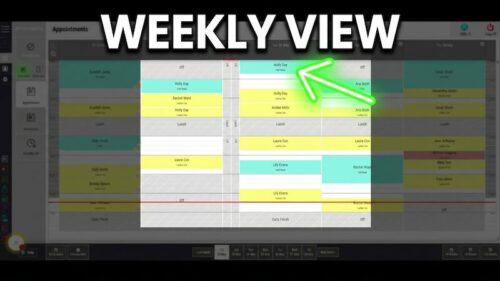
Video walkthrough: hiding booked-out team members from the Salon Manager diary.
Quick answer
Turn on Hide Booked Out Team Members
Open diary settings, go to Display Settings, enable Hide Booked Out Team Members, then select Save.
Before you start
Check these details first
Access to diary settings
Permission to update display settings
Step-by-step instructions
How to hide booked-out team members
Follow these steps to remove unavailable team members from the diary day view.
Useful tips
Keep the diary clear and accurate
Use this setting to reduce clutter in the diary.
When a team member is missing, check whether they are booked out and whether this setting is enabled.
Combine the setting with accurate rostering so the diary remains useful.
Troubleshooting
Common issues and what to check
Frequently asked questions
Booked-out team member questions
Can I hide team members who are booked out?
Yes. Enable Hide Booked Out Team Members in Display Settings.
Can I show them again later?
Yes. Turn the setting off and save the change.
Does this delete team members?
No. It only changes which team members are visible in the diary.
Offline reference
Download this guide as a PDF
Keep a printable copy for diary administrators or use it during staff training.
Last reviewed: 16 June 2026.