Use this guide to change the colour used for bookouts in Salon Manager. Bookout colours make it easier to identify different types of blocked time in the diary.
Quick answer
To change a bookout colour, open Add Bookout from an empty diary slot, edit the relevant bookout reason, choose a new colour and click Confirm.
Before you start
Access to the diary
Permission to update bookout reasons or colours
The bookout reason you want to change
Step-by-step instructions
Open the Salon Manager diary.
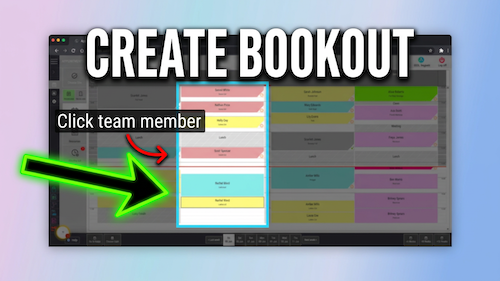
Click an empty spot in the diary to open the client search menu.
Click Add Bookout on the left-hand side.
The list of bookout reasons will appear.
Scroll to find the bookout reason whose colour you want to change.
Click the pencil icon to edit it.
In the edit menu, find the colour option.
Use the slider and colour selector to choose the new colour.
Click Confirm.
Click back to the diary at the top left.
Check that the selected bookout reason now uses the new colour.
Tips
Use different colours for different types of bookout so the diary is easier to read.
Choose colours that are clear but not too similar to appointment colours.
After changing a colour, check an existing or new bookout to confirm it displays correctly.
Troubleshooting
I cannot find the bookout reason
Scroll through the list of bookout reasons or check whether the reason has been created.
The colour did not update
Make sure you clicked Confirm and returned to the diary.
The colour looks too similar to another bookout
Edit the reason again and choose a more distinctive colour.
FAQs
Can I change the colour of a bookout reason?
Yes. Edit the bookout reason and choose a new colour.
Where do I access bookout reasons?
Click an empty diary slot, then choose Add Bookout.
Can different bookout reasons have different colours?
Yes. Edit each reason and choose the colour you want.
Download this guide
You can also download the PDF version of this guide for offline reference.