Video walkthrough: enabling account balance payments for an individual client in Salon Manager.
Quick answer
Turn on Can pay by account sales
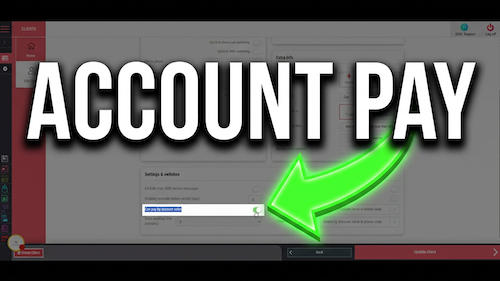
Open the client’s record, select Edit Client, scroll to Settings & switches, turn on Can pay by account sales, then select Update Client. This allows the client to pay using their account balance.
Before you start
Have these details ready
Access to Salon Manager
Permission to view and edit client records
The correct client record open
Confirmation that the client can use account balance payments
Awareness that the setting may allow the client to go into debt
Step-by-step instructions
How to enable client account balance payments
Follow these steps to allow the client to use their account balance as a payment method.
Useful tips
Use account sales carefully
Make sure the correct client record is open before changing the setting.
Only enable account payments for clients who are authorised to use this method.
Remember that the setting may allow the client to build up debt on their account.
Always select Update Client so the change is saved.
Troubleshooting
Common issues and what to check
Frequently asked questions
Account balance payment questions
Can I allow a client to pay using their account balance?
Open the client record, select Edit Client, turn on Can pay by account sales, then select Update Client.
Where is the account balance payment setting?
It is in the Settings & switches section on the client settings page.
What does this setting do?
It allows the client to pay via their account balance in Salon Manager.
Can enabling this let a client go into debt?
Yes. Enabling this setting can potentially allow the client to build up debt on their account.
Do I need to save the change?
Yes. Select Update Client at the bottom right to save the setting.
Offline reference
Download this guide as a PDF
Keep a printable copy for reception teams or use it during staff training.
Last reviewed: 18 June 2026.