Appointments guide
How to Access Client Record Cards from Appointments
Open a client record card directly from their diary appointment when you need to check or update client information quickly.
Video walkthrough: opening a client record card from an appointment in the Salon Manager diary.
Quick answer
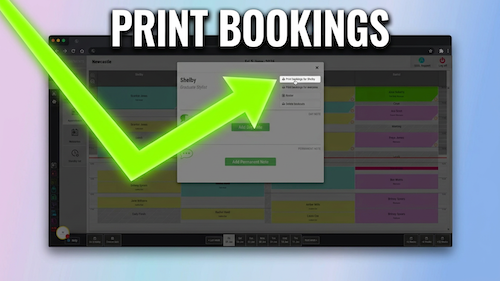
Open the appointment and select View Client Record Card
Double-click the client appointment, then select View Client Record Card on the right-hand side of the menu.
Before you start
Check these details first
Step-by-step instructions
How to open a client record card from the diary
Follow these steps to access the client record without searching for the client separately.
Useful tips
Use this shortcut when working from the diary
Troubleshooting
Common issues and what to check
Frequently asked questions
Client record card questions
Can I open a record card from the diary?
Yes. Open the appointment and select View Client Record Card.
Do I need to search for the client separately?
No. When the client has an appointment in the diary, the record card can be opened directly from that appointment.
Can I access client notes from the same menu?
Yes. Use the Client Notes option from the appointment menu.
Offline reference
Download this guide as a PDF
Keep a printable copy for diary users or use it during staff training.
Last reviewed: 16 June 2026.