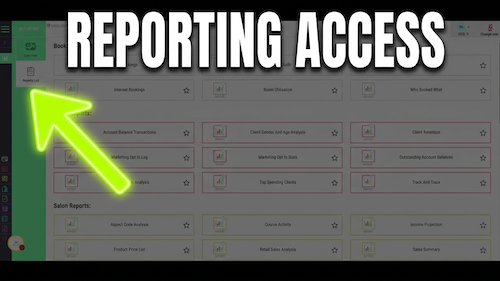
Video walkthrough: running reports in Salon Manager Reports.
Quick answer
Open Reports List, choose a report and run it
Open the Reports module, go to Reports List, select the report you want to run, choose the site and date range if required, then click Run Report.
Before you start
Have these details ready
Access to Salon Manager
Permission to view reports
Access to the Reports module
The report you want to run identified
The required reporting date range decided
Step-by-step instructions
How to run a report
Follow these steps to choose the report, set the criteria and generate the results.
Open Salon Manager
Sign in and open the main Salon Manager application.
Open Reports
Go to the Reports module.
Select Reports List
From the left-hand menu, click Reports List.
Find the report
Locate and select the report you want to run.
Choose the site
If you have multiple sites, select the site or sites to include.
Set the start date
Choose the Start Date for the report.
Set the end date
Choose the End Date for the report.
Review the criteria
Check the selected site and date range before continuing.
Run the report
Click Run Report to generate the report.
Review the results
The report will generate using the selected criteria.
Useful tips
Choose the right criteria before running a report
Choose the correct date range before running the report to ensure the results are accurate.
If you manage multiple sites, make sure you select the correct location.
Use custom date ranges to report on any period you require.
Review the report after it has loaded before exporting or printing it.
Troubleshooting
Common issues and what to check
Frequently asked questions
Report running questions
How do I run a report in Salon Manager?
Open the Reports module, select Reports List, choose a report, set the site and date range, then click Run Report.
Can I run reports for multiple sites?
Yes. If your salon has multiple sites, you can select the site you want to report on before running the report.
Can I choose a custom date range?
Yes. Select any Start Date and End Date before running the report.
Do I need to select a site if I only have one salon?
No. If you only have one site, you can leave the site selection as it is.
Can I run reports for historical data?
Yes. You can select earlier start and end dates to generate reports for previous periods.
Offline reference
Download this guide as a PDF
Keep a printable copy for offline reference.
Last reviewed: 05 August 2026.