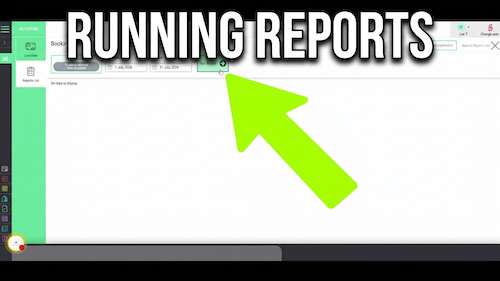
Running reports
[data-sm-page="guide-04-run-reports"],[data-sm-page="guide-04-run-reports"] *{font-family:Arial,Helvetica,sans-serif !important;box-sizing:border-box;}[data-sm-page="guide-04-run-reports"] h1{font-family:...
Video walkthrough: moving an appointment to a new position in the Salon Manager diary.
Quick answer
Find the appointment, click it once so it is highlighted, then drag and drop it into the new time, team member column or diary position.
Before you start
Step-by-step instructions
Follow these steps to move the booking without changing its service details.
Useful tips
Troubleshooting
Frequently asked questions
Yes. Click the appointment once to highlight it, then drag and drop it where needed.
Yes, provided the time and diary position are available.
Yes. Always check the new time, team member and duration.
Offline reference
Keep a printable copy for diary users or use it during staff training.
Last reviewed: 16 June 2026.